SP-732 document quiz: beta test guide
How to test the document quiz fixes from PR #705 on beta, with the result and a screenshot of each step from a real run on 18 November 2026. Eleven steps passed. Step 12 was not possible in this course.
Summary
| Step | What it checks | Result |
|---|---|---|
| 1 | Answer file types | PASS |
| 2 | Section labels from a worksheet | PASS |
| 3 | Essay rows block Save | PASS |
| 4 | Labels stay when rows are added or removed | PASS |
| 5 | Labels that are not allowed | PASS |
| 6 | Save and reopen | PASS |
| 7 | Numbered exam renumbers 1..N | PASS |
| 8 | Answer file with no answers | PASS |
| 9 | Explanations | PASS |
| 10 | Student takes the labelled quiz | PASS |
| 11 | Student review page | PASS |
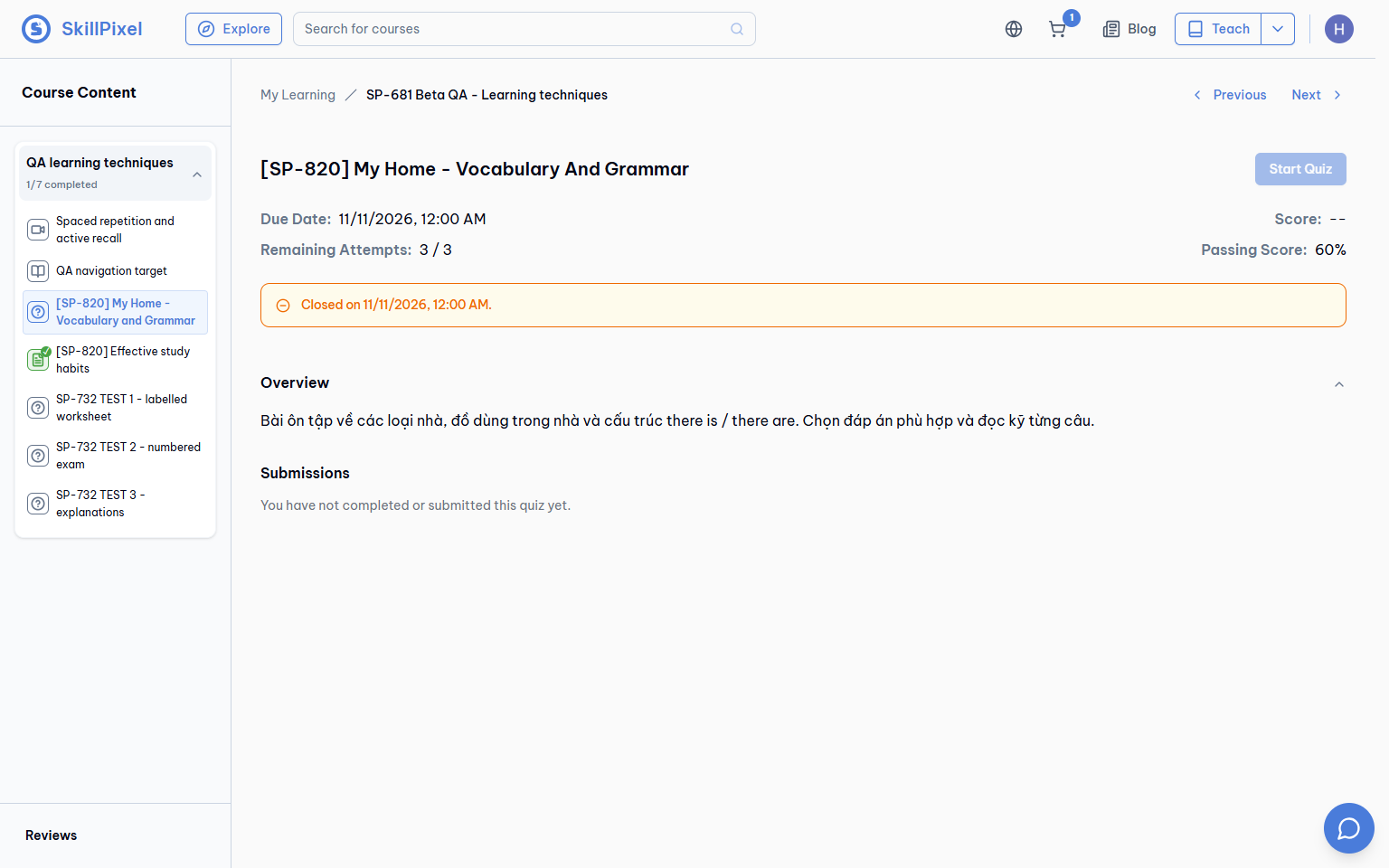
| 12 | Native quiz review still numbered | BLOCKED |
Setup
- Site: https://beta.skillpixel.vn, English UI (globe icon in the header).
- Tenant setting:
quiz.document.enabledmust be on in Platform Admin (Document quizzes). When it is off, the New quiz form has noDocument quiz
switch. - Account: an instructor of the course. The same account can open the course as a learner for steps 10 and 11.
- Course: Teach → Courses → SP-681 Beta QA - Learning techniques → Content → Chapter 1
QA learning techniques
. - Create a document quiz: Add Lesson → Quiz → turn on Document quiz (question PDF + answer sheet) → type a Quiz Title → Save → Edit questions.
- Test files: download them from the Test files table below.
- AI use: steps 2, 7, 8 and 9 each run one real AI extraction and count toward the tenant's AI usage.
Quizzes left on beta from this run (you can look at them, or make your own)
- SP-732 TEST 1 - labelled worksheet: 54 saved rows, one submitted attempt. Learner page.
- SP-732 TEST 2 - numbered exam: 40 saved rows, plus the unsaved empty draft from step 8.
- SP-732 TEST 3 - explanations: 40 saved rows with explanations.
Test files
| File | Used in | What it is |
|---|---|---|
| unit2-questions.pdf (146 KB) | Steps 1 to 6 | Worksheet with sections; numbering restarts in each exercise |
| unit2-answers.docx (19 KB) | Step 2 | Answer key for the worksheet (Word) |
| answers-dummy.xlsx (1 KB) | Step 1 | A file type that is not allowed |
| thpt2025-questions.pdf (170 KB) | Step 7 | 40-question exam numbered 1 to 40 |
| thpt2025-answers.pdf (101 KB) | Step 7 | Answer key for the exam (PDF) |
| no-answers.txt (1 KB) | Step 8 | Text file with no answers in it |
| tuyenquang-questions.pdf (284 KB) | Step 9 | 40-question exam |
| tuyenquang-answers-table.docx (48 KB) | Step 9 | Answer key as a table with explanations (Word) |
Steps
Step 1
Answer file types
PASSDo this
- Create quiz 1 (see Setup) and open Edit questions.
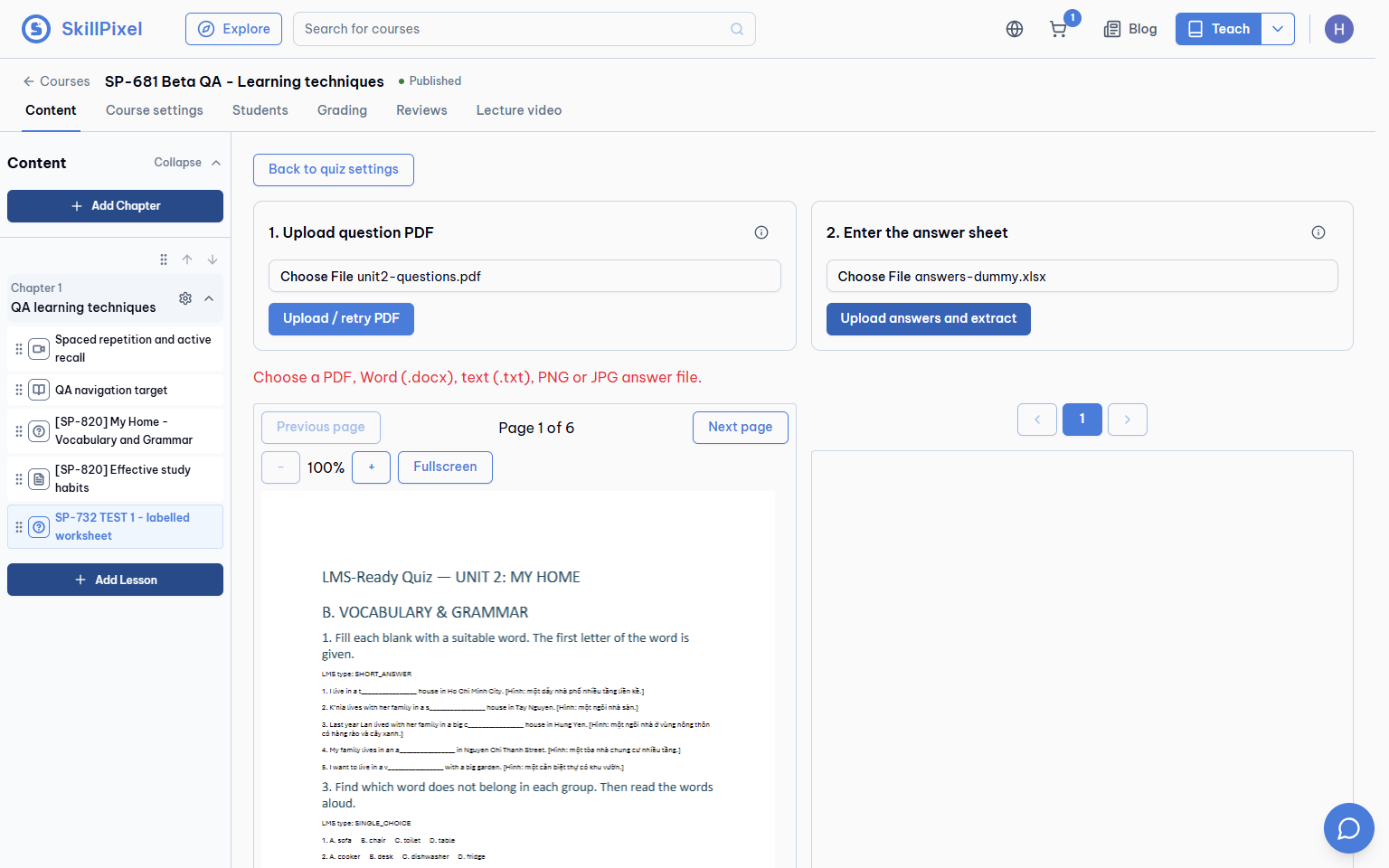
- Under 1. Upload question PDF: Choose File →
unit2-questions.pdf→ Upload / retry PDF. - Under 2. Enter the answer sheet: Choose File → set the picker to All files → choose a file that is not allowed, for example
answers-dummy.xlsx→ Upload answers and extract.
Expected
- The file is refused at once. Nothing is uploaded.
- Red message:
Choose a PDF, Word (.docx), text (.txt), PNG or JPG answer file.
Result on beta, 18 Nov 2026
Message shown as expected. No request was sent to the server.
Step 2
Section labels from a worksheet
PASSDo this
- Same quiz. Choose File →
unit2-answers.docx→ Upload answers and extract. - Wait until
Extracting answers…
ends (about 1 to 3 minutes). - Use the page buttons 1 to 6 above the sheet to look at all rows.
Expected
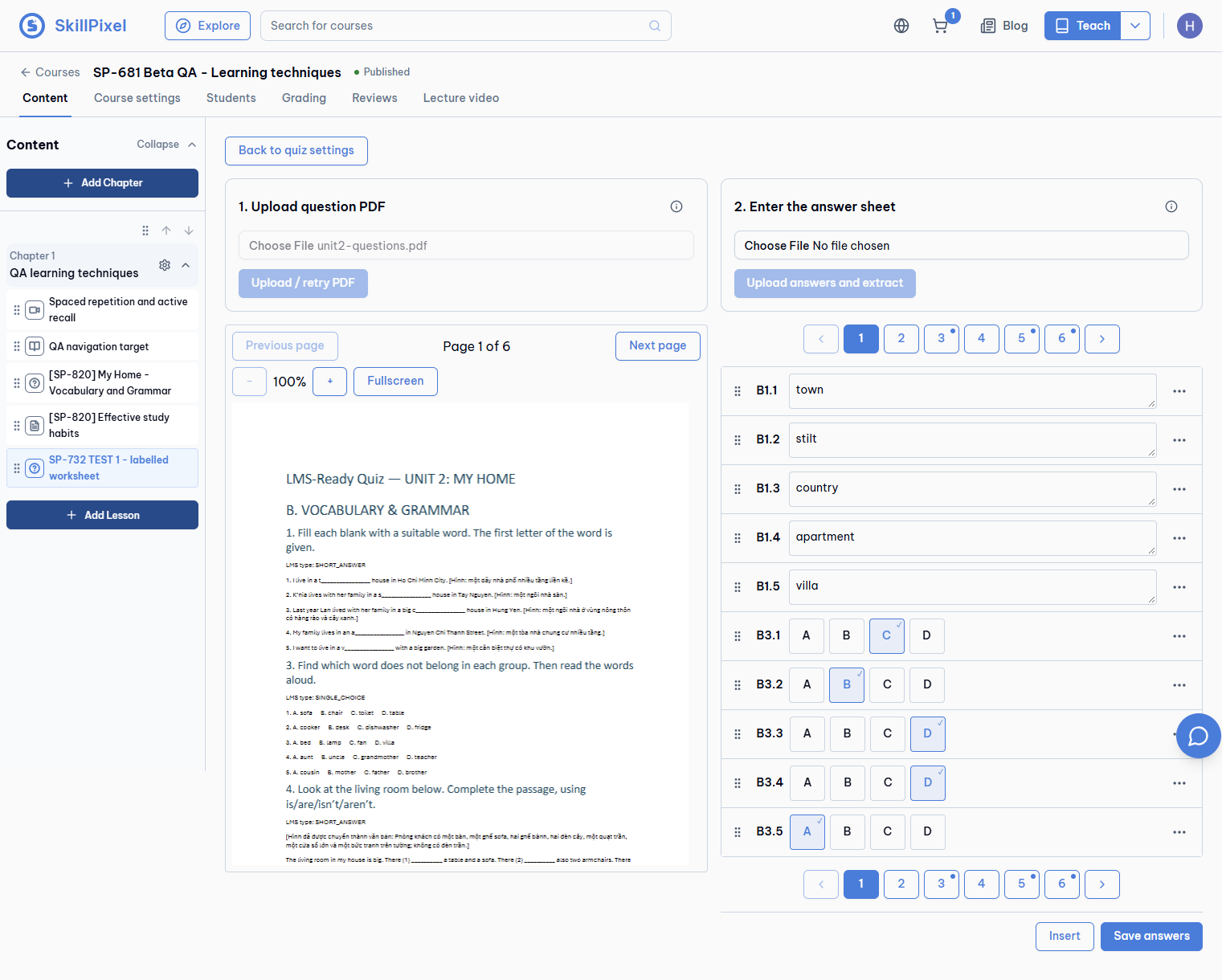
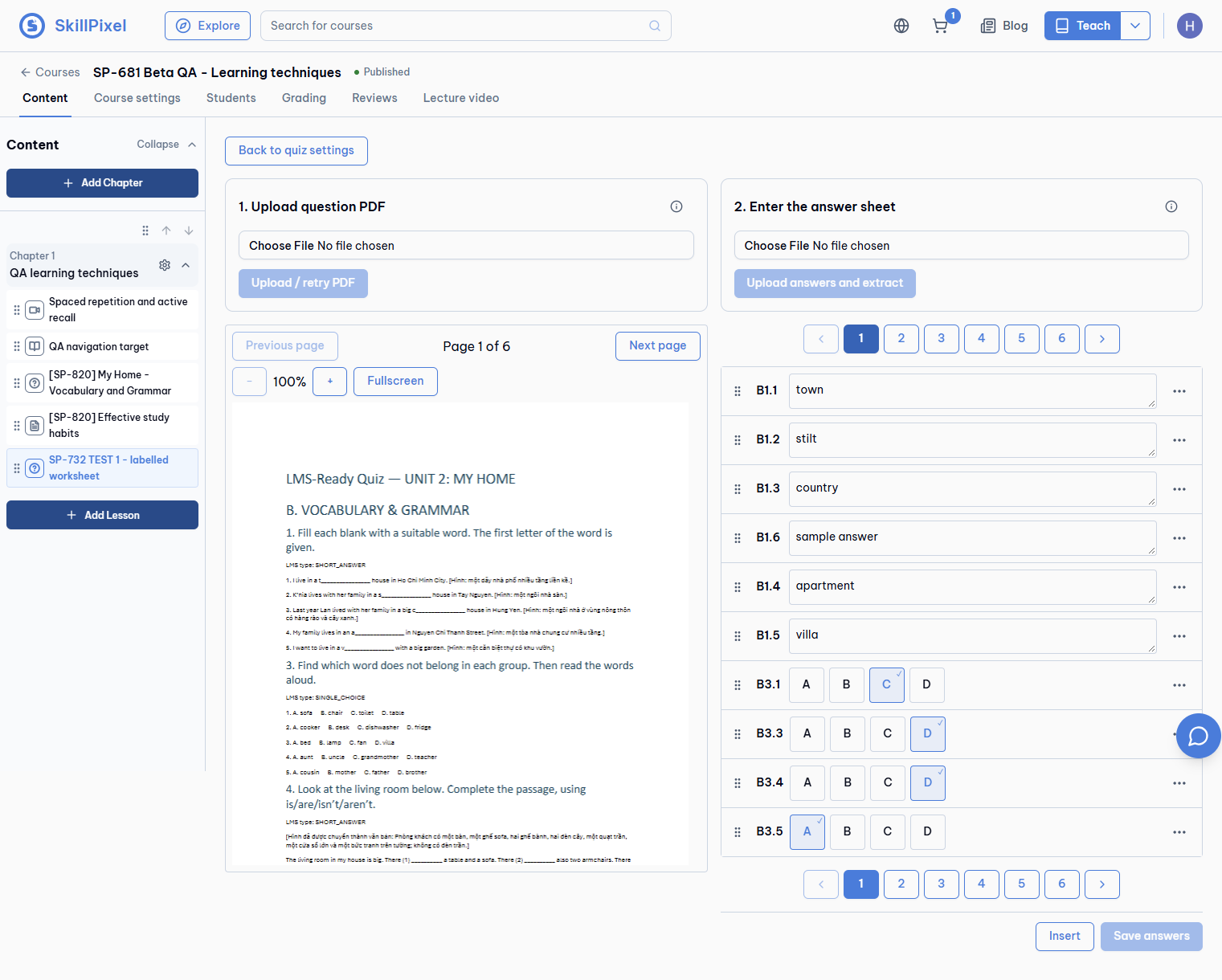
- About 55 rows. Each row has the label printed on the paper, for example
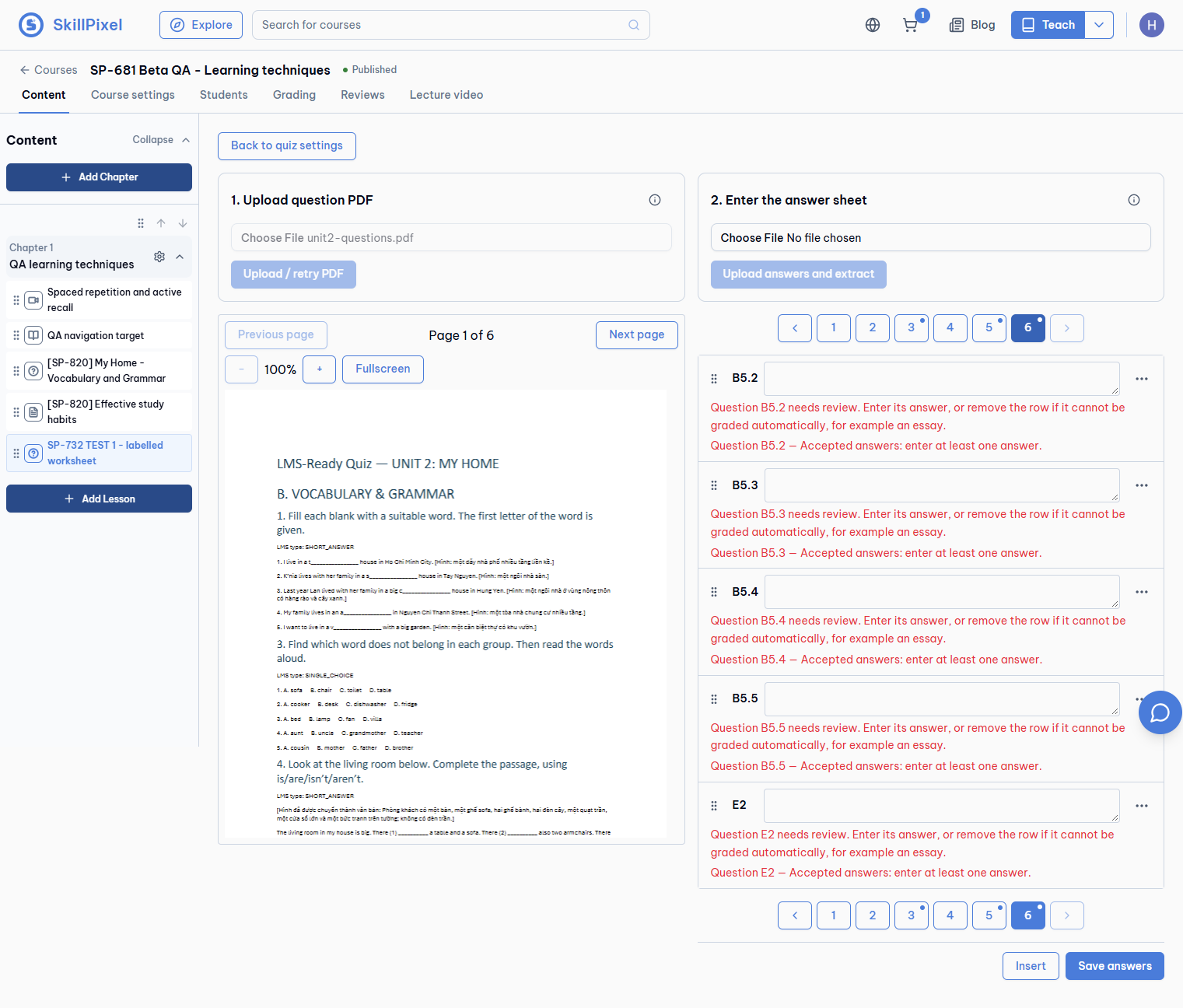
B1.3,D3a.1. - Essay items (C2, E2) are empty Short answer rows that are flagged for review.
- A flagged row says:
Question C2 needs review. Enter its answer, or remove the row if it cannot be graded automatically, for example an essay.
Result on beta, 18 Nov 2026
55 rows in about 75 seconds. 48 rows have an answer. 7 rows are flagged: C2, E2, and B5.1 to B5.5. B5.1 to B5.5 are answer keys for an exercise that is not in the question paper; they are listed after E1.5. The AI can give slightly different rows on another run.
Step 3
Essay rows block Save
PASSDo this
- Do not change anything. Press Save answers (bottom right of the sheet).
Expected
- Nothing is saved.
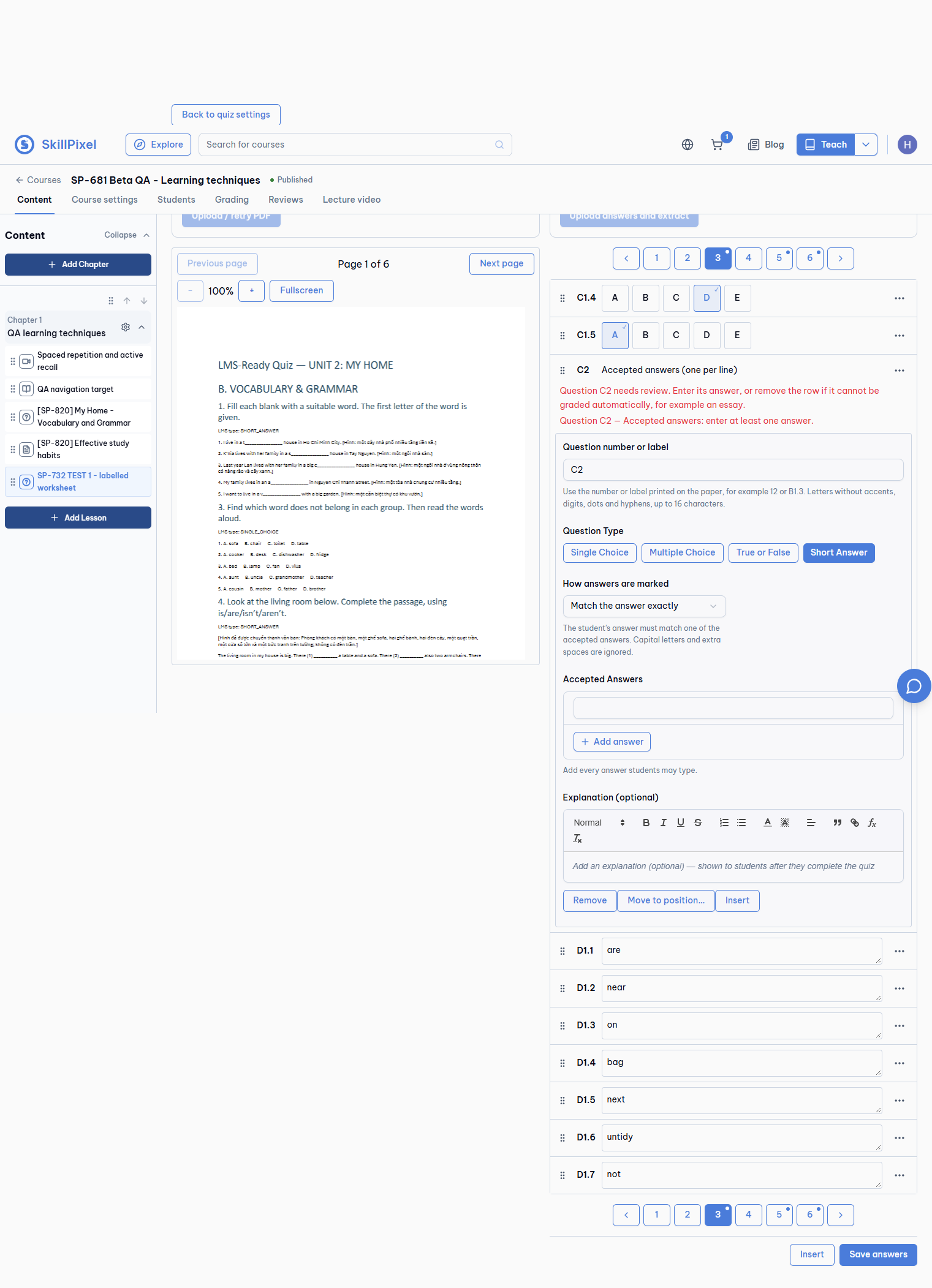
- The sheet jumps to the first flagged row and opens it with:
Question C2 — Accepted answers: enter at least one answer.
Result on beta, 18 Nov 2026
Save was blocked. The sheet opened row C2 with both messages.
Step 4
Labels stay when rows are added or removed
PASSDo this
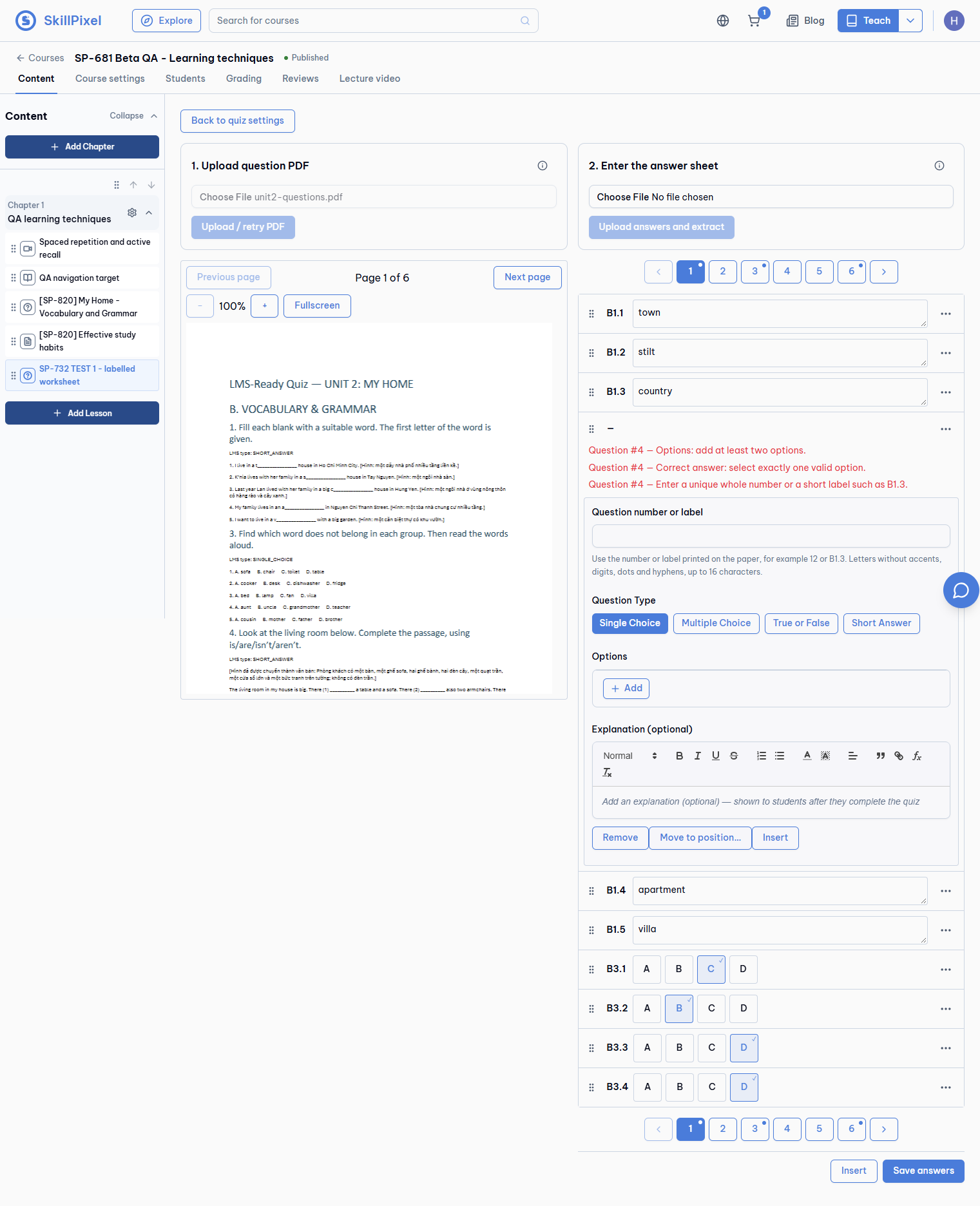
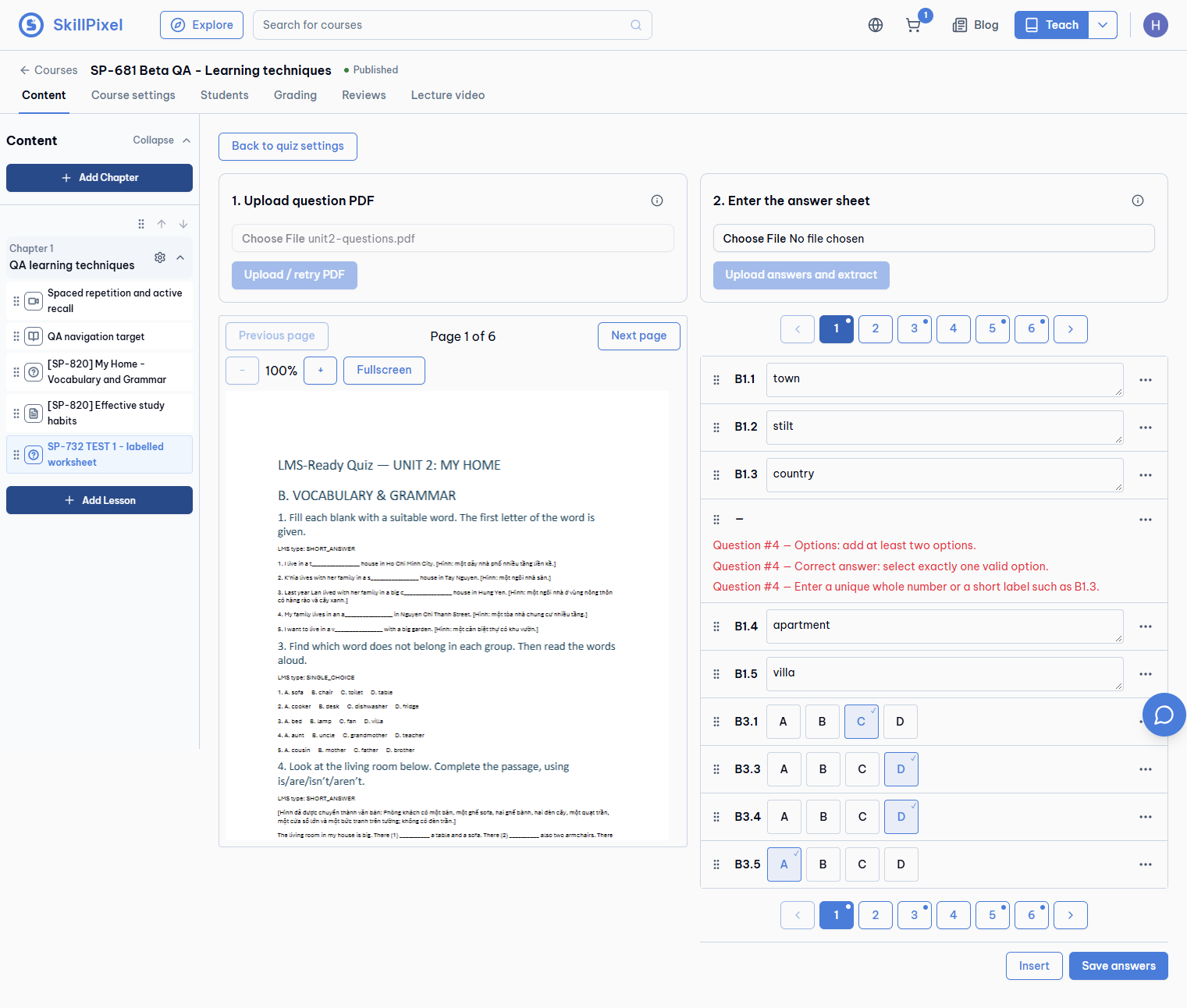
- Row
B1.3→ … → Insert. - Row
B3.2→ … → Remove.
Expected
- All other labels stay the same (no renumbering).
- The new row has an empty label, shown as
—
, and asks for one:Enter a unique whole number or a short label such as B1.3.
Result on beta, 18 Nov 2026
The other labels did not change after the insert or after the remove. The new row had an empty label.
Step 5
Labels that are not allowed
PASSDo this
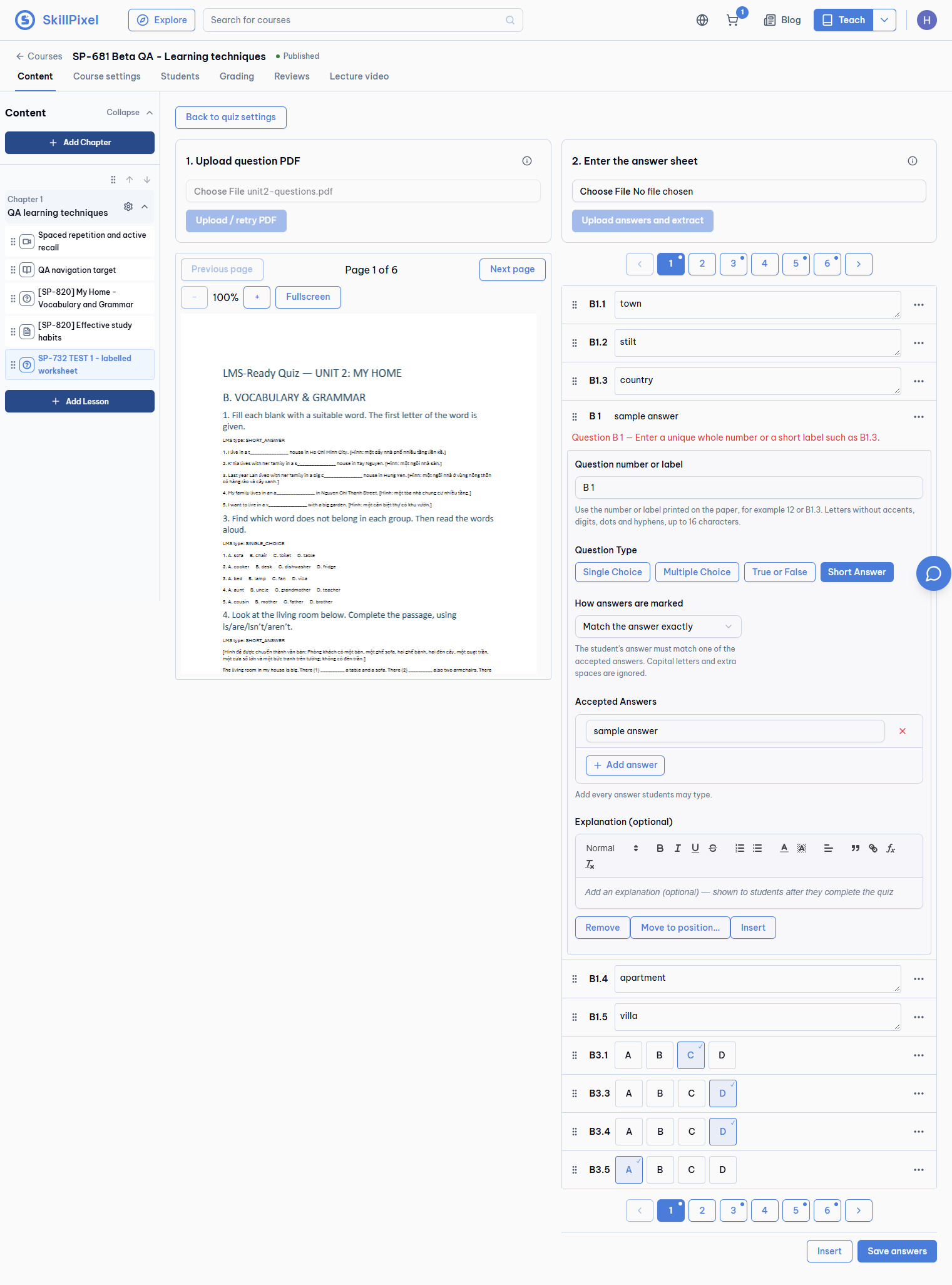
- Open the new row (…). Set Question Type to Short Answer and type an accepted answer.
- In Question number or label type
B 1(with a space). Press Save answers. - Change the label to
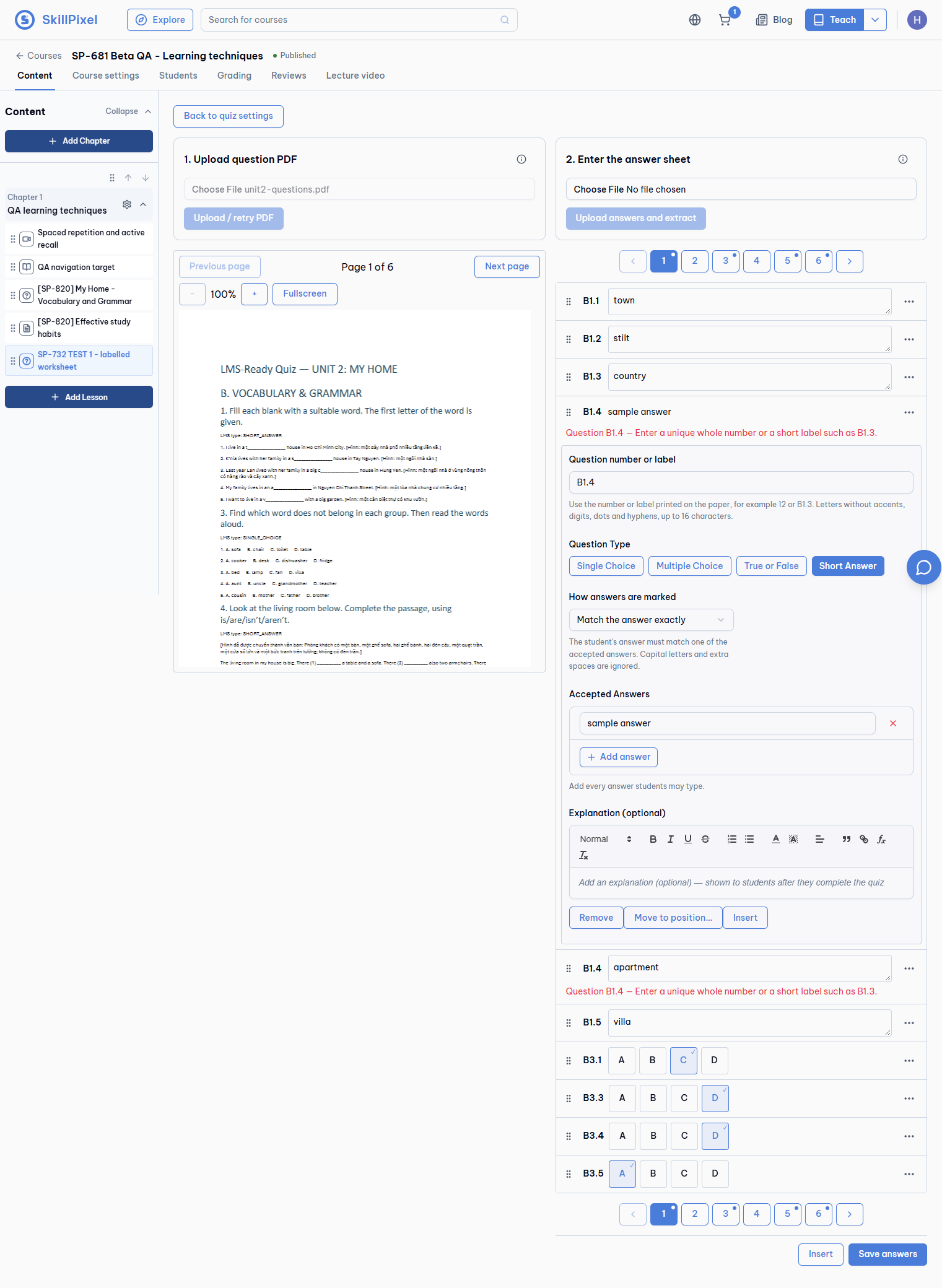
B1.4(same as another row). Press Save answers.
Expected
- Both labels are refused and nothing is saved.
- Message:
Enter a unique whole number or a short label such as B1.3.
For the duplicate, both rows show it.
Result on beta, 18 Nov 2026
Both cases were refused. No request was sent to the server.
Step 6
Save and reopen
PASSDo this
- Give the new row a free label, for example
B1.6. - For each flagged row: type an accepted answer, or remove the row.
- Press Save answers, then reload the page.
Expected
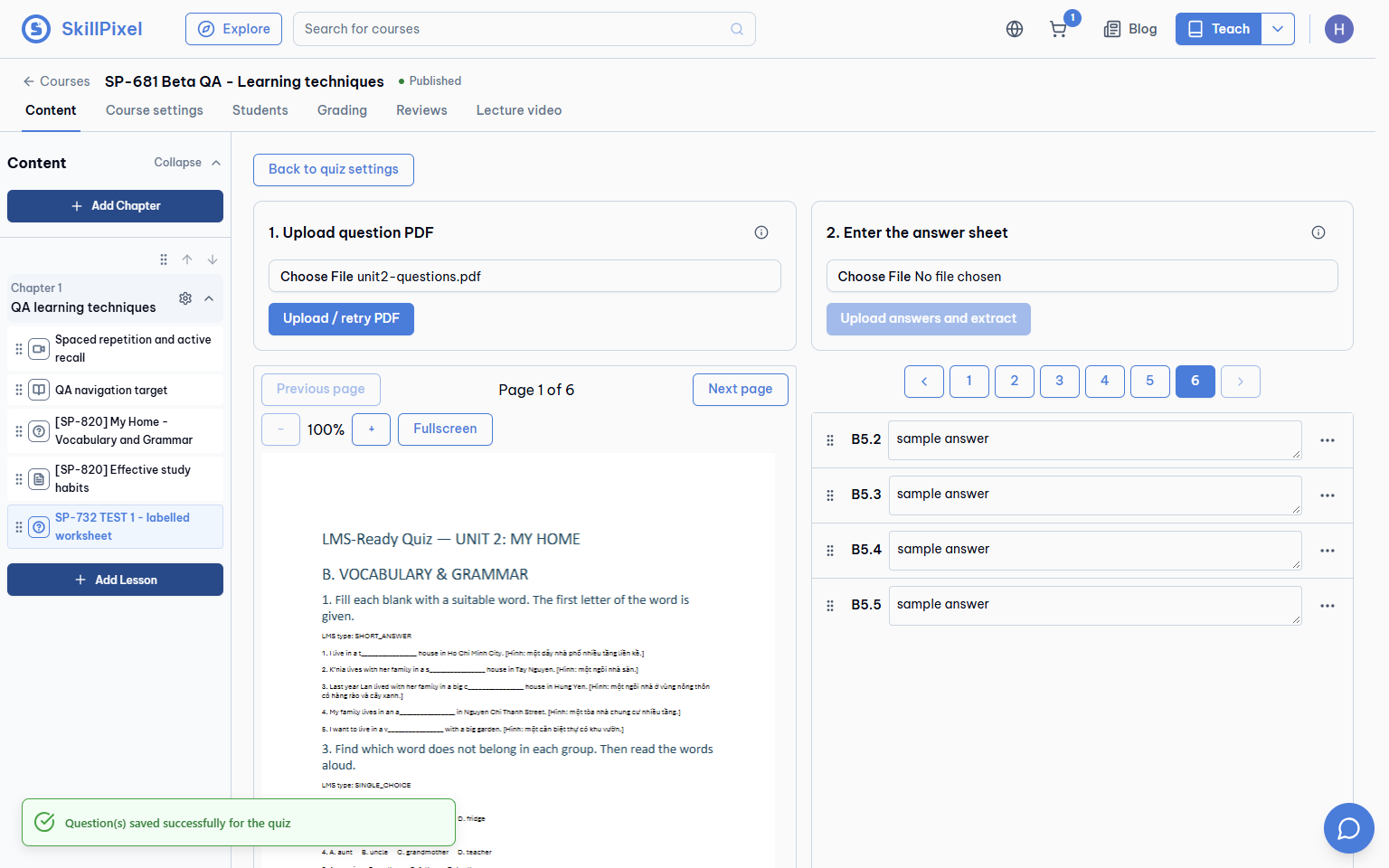
- Toast:
Question(s) saved successfully for the quiz
. - After reload the labels, order and answers are the same.
Result on beta, 18 Nov 2026
Saved with 54 rows. After reload the labels, order and answers were identical.
Step 7
Numbered exam renumbers 1..N
PASSDo this
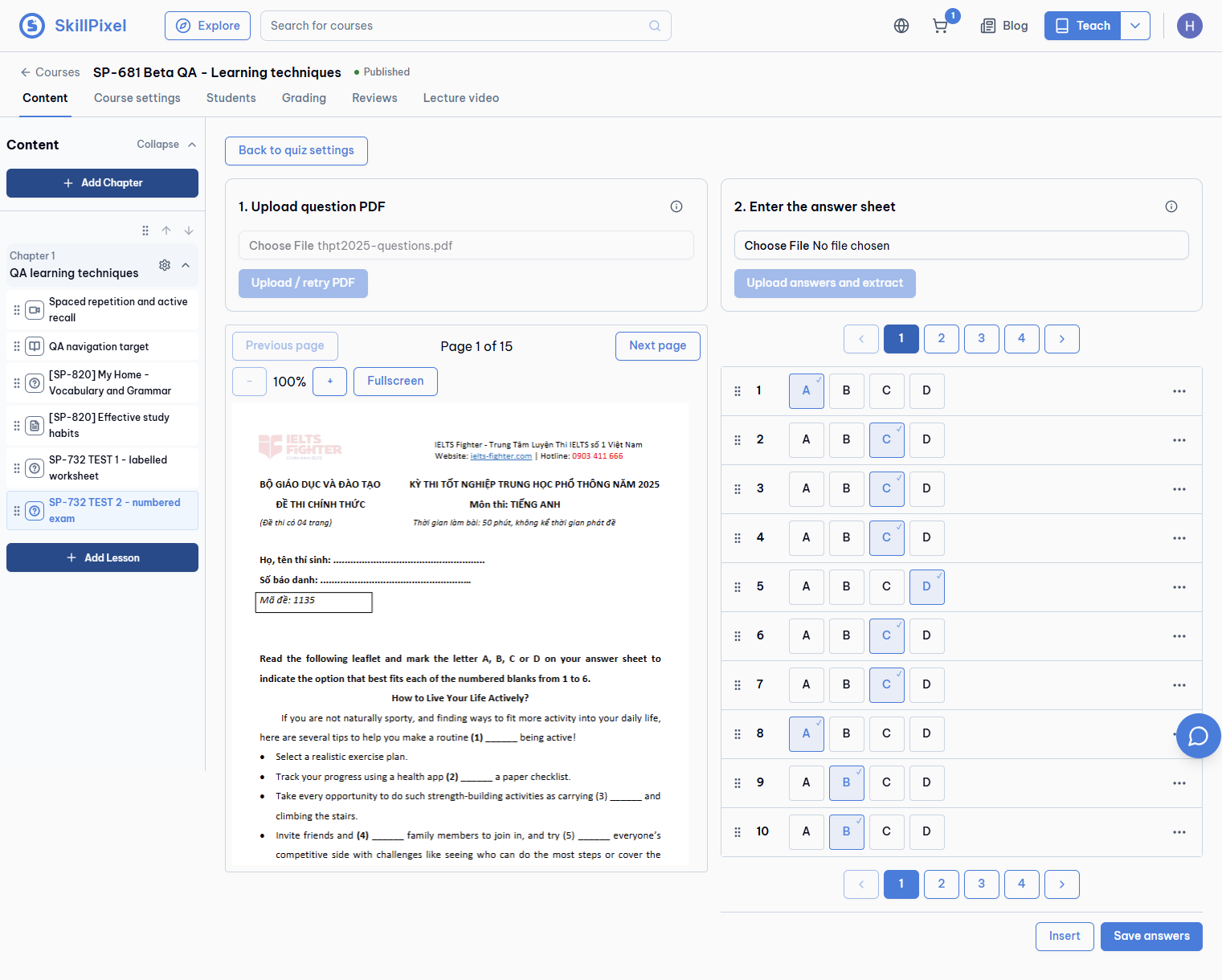
- Create quiz 2. Upload
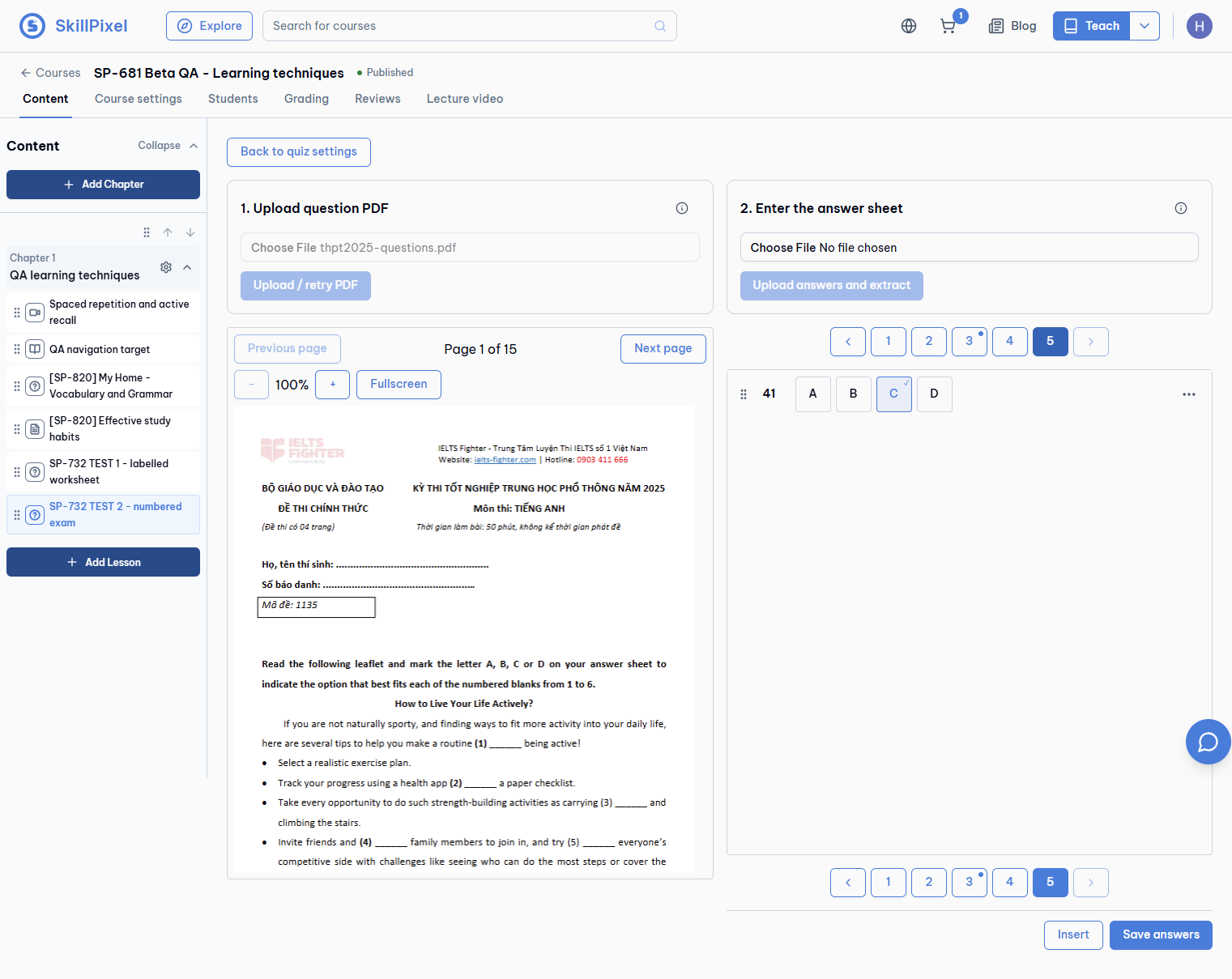
thpt2025-questions.pdf, thenthpt2025-answers.pdfas the answer file. - After extraction: page 2 → row
20→ … → Insert. - Then remove the inserted row 21 and press Save answers.
Expected
- 40 rows numbered 1 to 40, each with one answer.
- After Insert the whole sheet is renumbered 1 to 41. After Remove it is 1 to 40 again.
Result on beta, 18 Nov 2026
40 rows with answers in about 40 seconds. Insert gave 1 to 41; remove gave 1 to 40. Saved.
Step 8
Answer file with no answers
PASSDo this
- Quiz 2, after saving. Use
no-answers.txt(a few lines of unrelated text). - Choose it as the answer file → Upload answers and extract. Do not save afterwards.
Expected
- Extraction finishes normally (it is not an error).
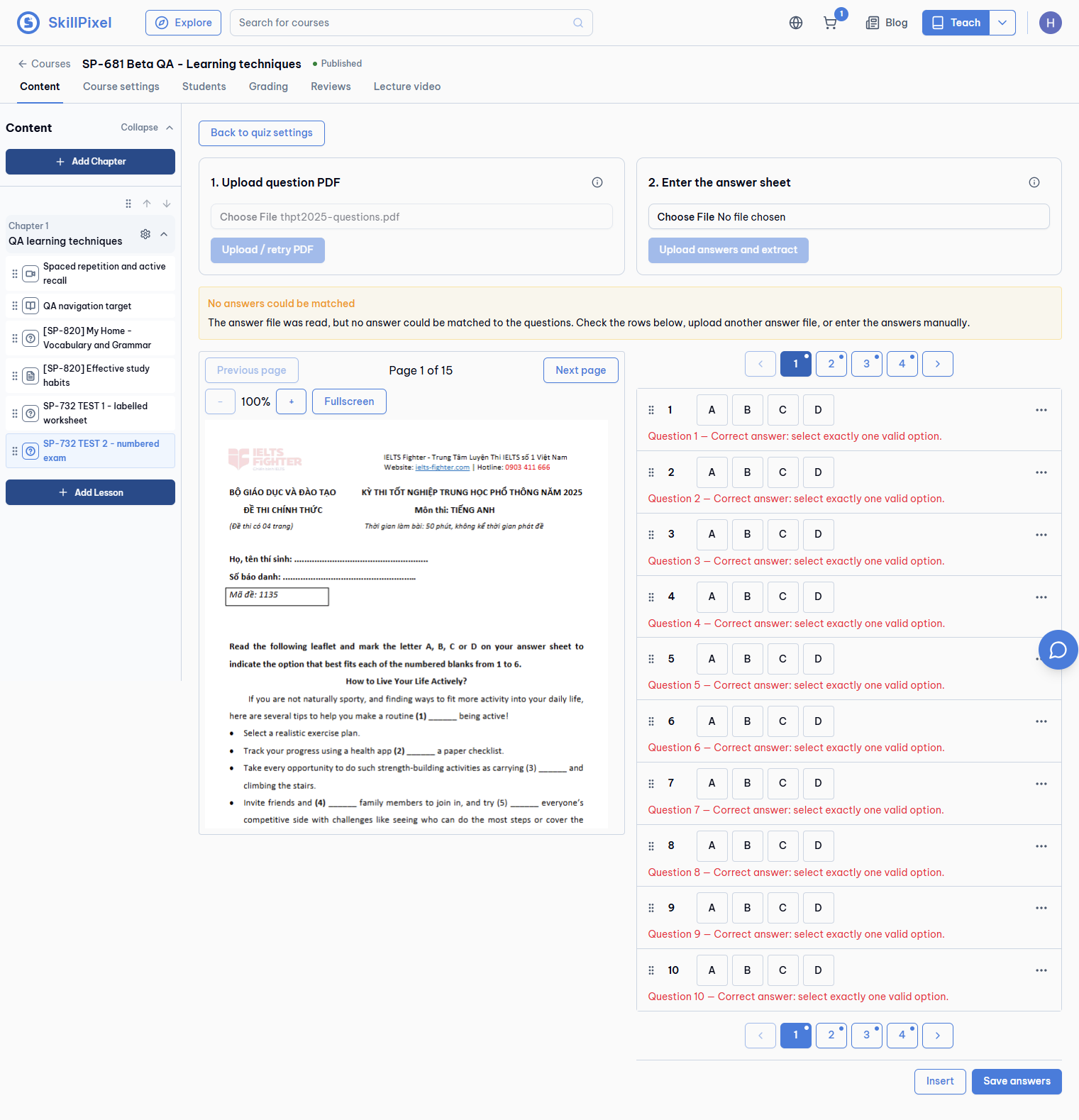
- Yellow box:
No answers could be matched
with the help textThe answer file was read, but no answer could be matched to the questions. Check the rows below, upload another answer file, or enter the answers manually.
Result on beta, 18 Nov 2026
Warning shown after about 39 seconds. The 40 saved answers stay on the server. Note: after a reload the editor opens on the new empty draft (0 of 40 answers) with the same warning, not on the saved answers. Students still get the saved answers.
Step 9
Explanations
PASSDo this
- Create quiz 3. Upload
tuyenquang-questions.pdf, thentuyenquang-answers-table.docx. - After extraction: page 4 → row
31→ … → look at Explanation (optional). - Press Save answers.
Expected
- Rows have an explanation taken from the answer file.
- Apostrophes and quotes look normal. The text
'does not appear.
Result on beta, 18 Nov 2026
40 rows, each with an answer and an explanation, in about 87 seconds. No
' anywhere in the data. Minor: some explanations have no line break between sentences.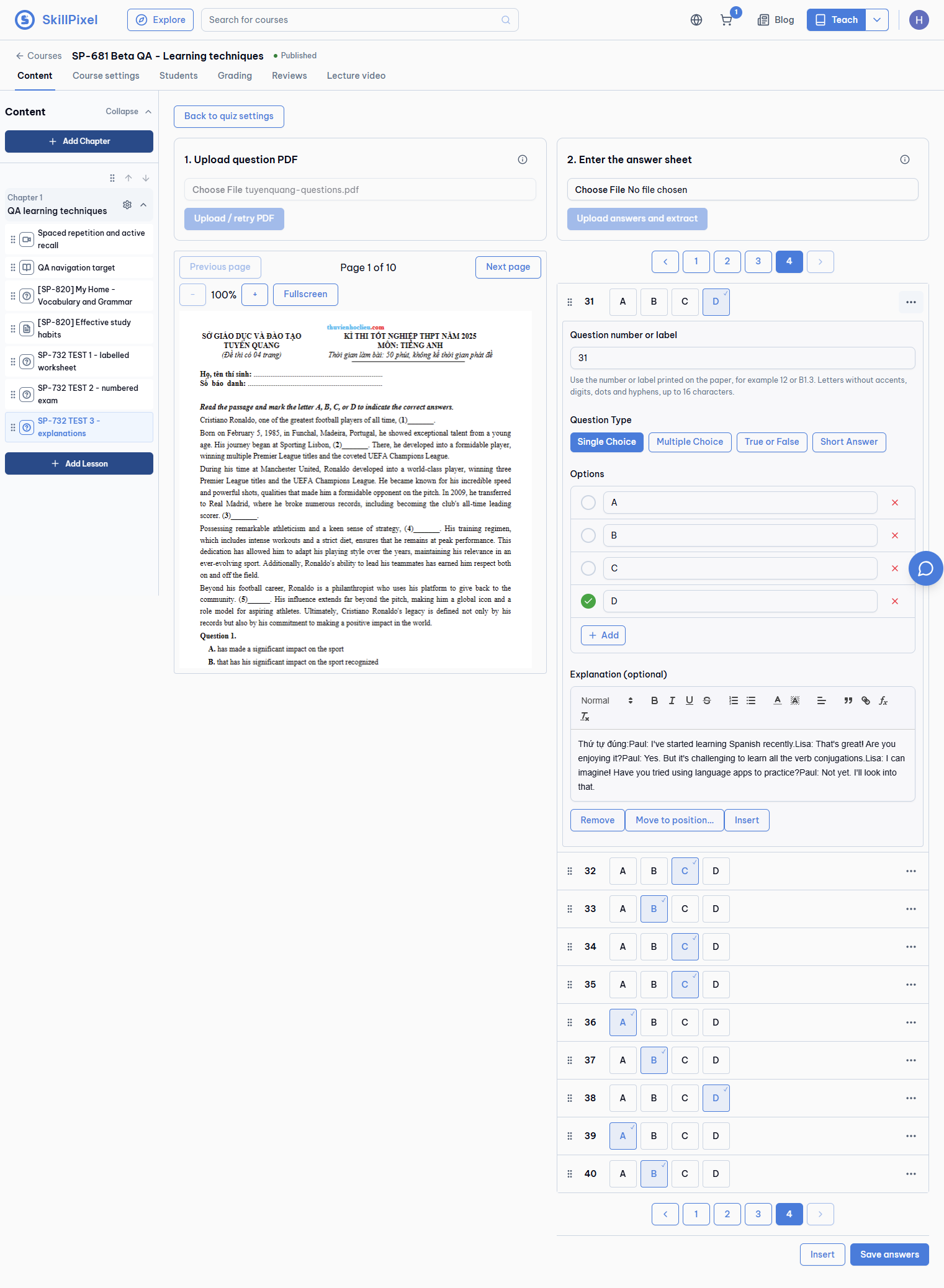
Step 10
Student takes the labelled quiz
PASSDo this
- Open the course as a learner and open quiz 1 (SP-732 TEST 1 - labelled worksheet).
- Press Start Quiz.
Expected
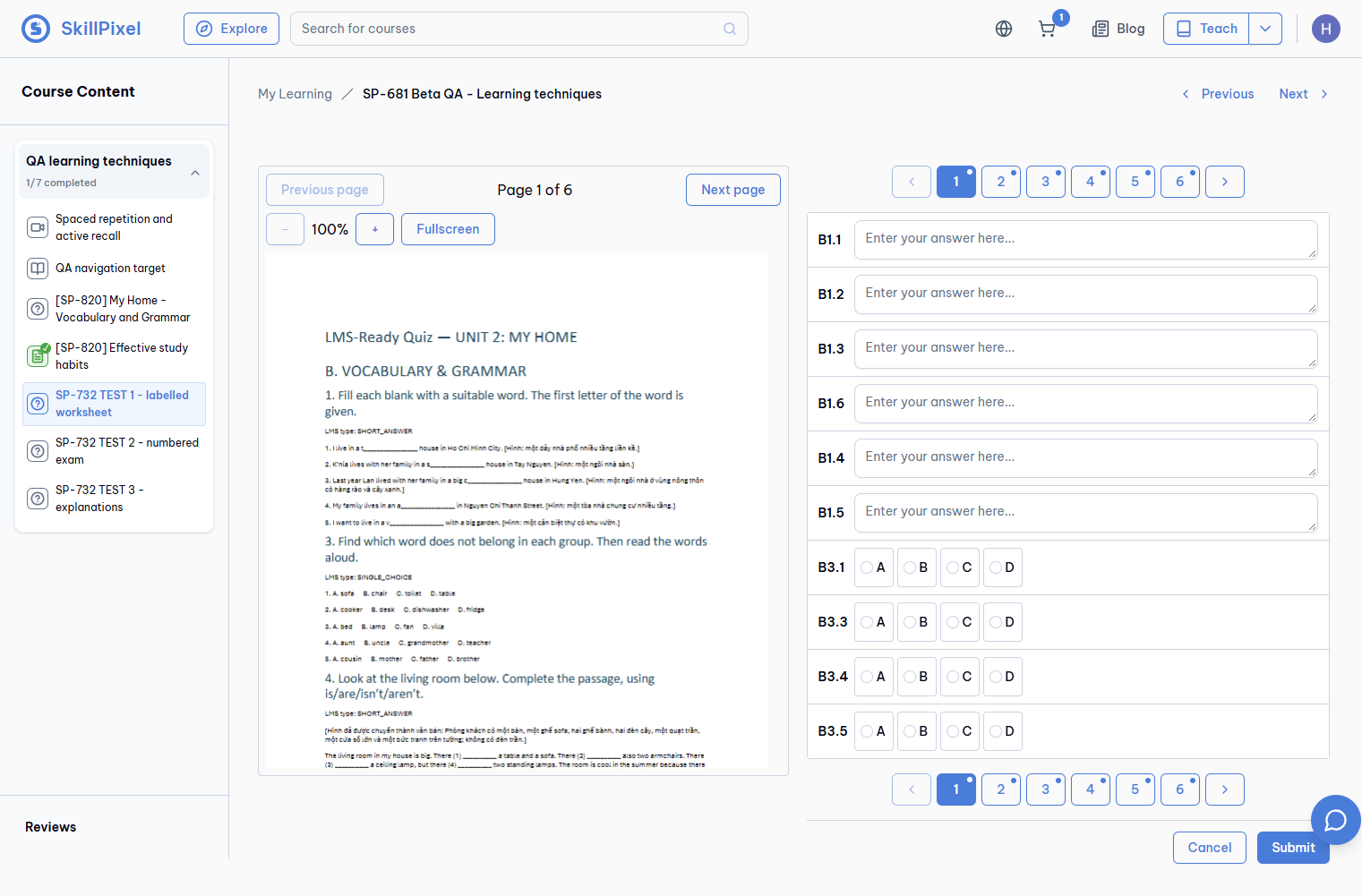
- Each answer row is headed by its label (
B1.1,B1.3…). - The text
NaN
does not appear anywhere.
Result on beta, 18 Nov 2026
Labels shown; no NaN. The instructor account could open the learner page directly.
Step 11
Student review page
PASSDo this
- Answer a few rows. Press Submit, then Submit anyway in the dialog.
- The review page opens.
Expected
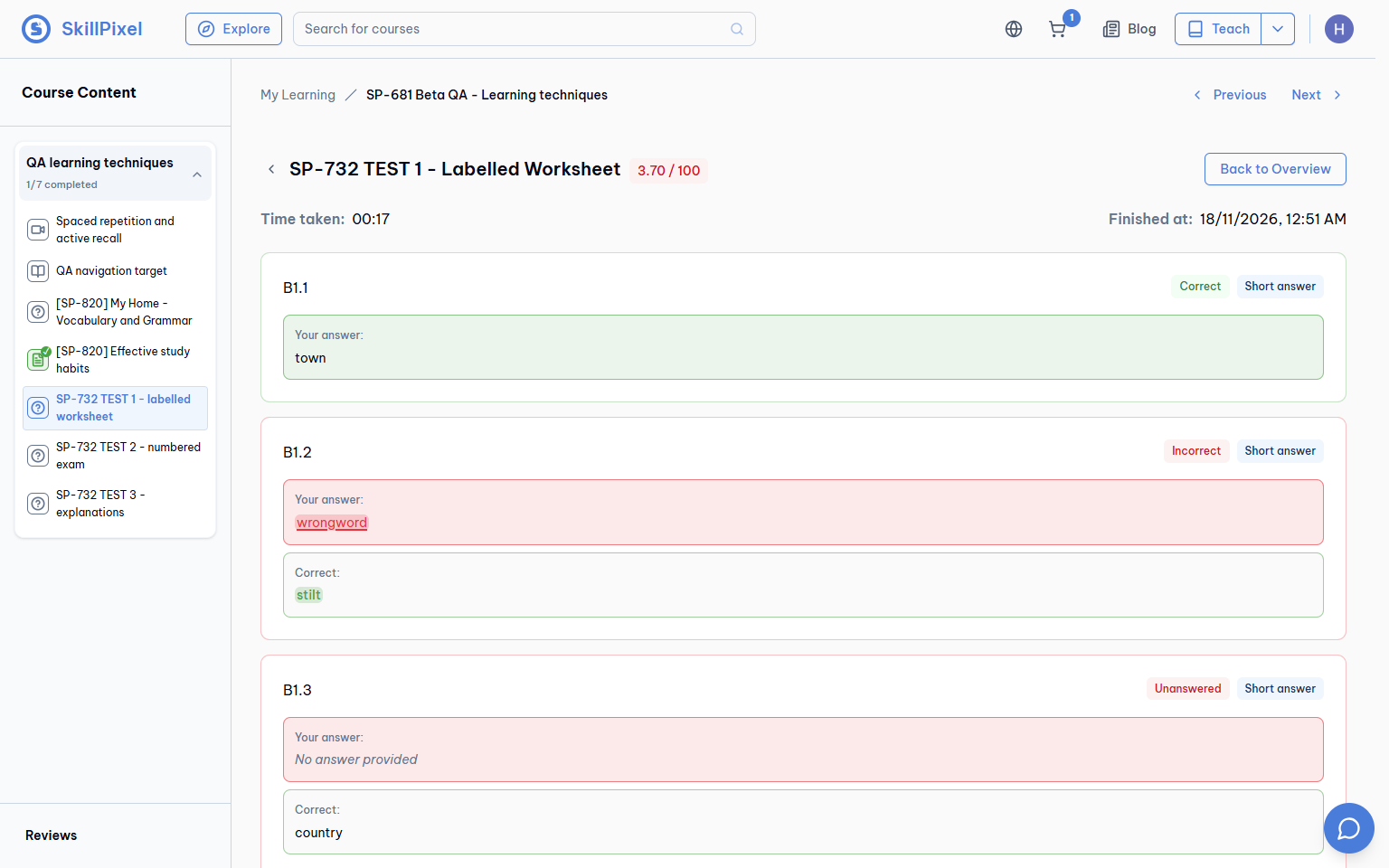
- Each row shows only its label, for example
B1.3. - There is no running count before it (not
3. B1.3
).
Result on beta, 18 Nov 2026
Rows are headed by the label only.
Step 12
Native quiz review still numbered
BLOCKEDDo this
- Open the review page of an attempt on a normal (not document) quiz.
Expected
- Rows still start with
1.
,2.
… as before.
Result on beta, 18 Nov 2026
Not tested on beta. The only native quiz in this course is closed and has no attempt. This case passed on the local stack. To test it on beta, use any open native quiz with an attempt.
Not covered by this guide
- Backend-only changes: error logging for failed extractions, the status poll without a row lock, and deletion of a replaced pending upload. These need access to the beta logs and storage bucket.
- Other answer file types: only .docx, .pdf and .txt answer files were used here. PNG and JPG answer files were not tried on beta.
- Known small things seen in the run: step 8 note (editor reopens on the empty draft), and missing line breaks in some explanations (step 9).